
Media lets you attach photos and videos to your Map so you can document the current state of your property and track changes over time. To get started, click 'Media' in the main menu.
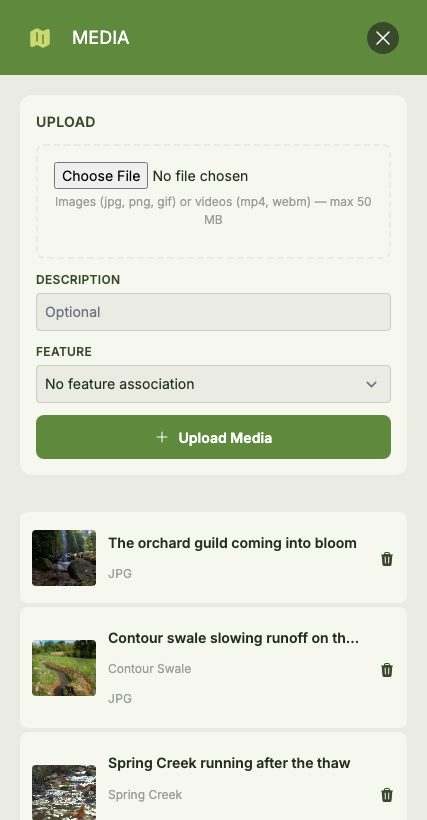
Uploading Media
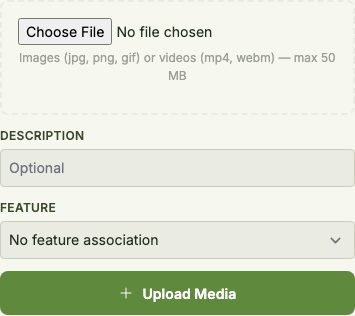
You can upload both images (JPG, PNG or GIF) and videos (MP4 or WebM), up to 50 MB per file. While uploading, you can optionally:
- Add a description to describe what the media shows
- Link it to a Feature so the media is associated with a specific Feature on your Map
Viewing Media
Uploaded media appears in a gallery of thumbnails. Click any item to open it full-size in a lightbox, where you can read its description, see which Feature it's linked to, and add Comments.
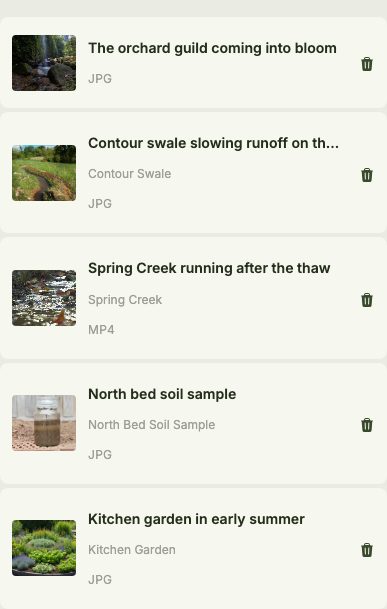
To remove a piece of media, click its delete button and confirm.