
The tabs at the top of the Tasks page switch between four views of the same Tasks. Each suits a different planning horizon, and any filters you've applied carry over when you switch.
Board
The Board arranges every Task on the current Map into a column per status: New, To Do, In Progress, Done and Blocked. It's the default view, and the day-to-day one for seeing what's underway, what's stuck and what's next.
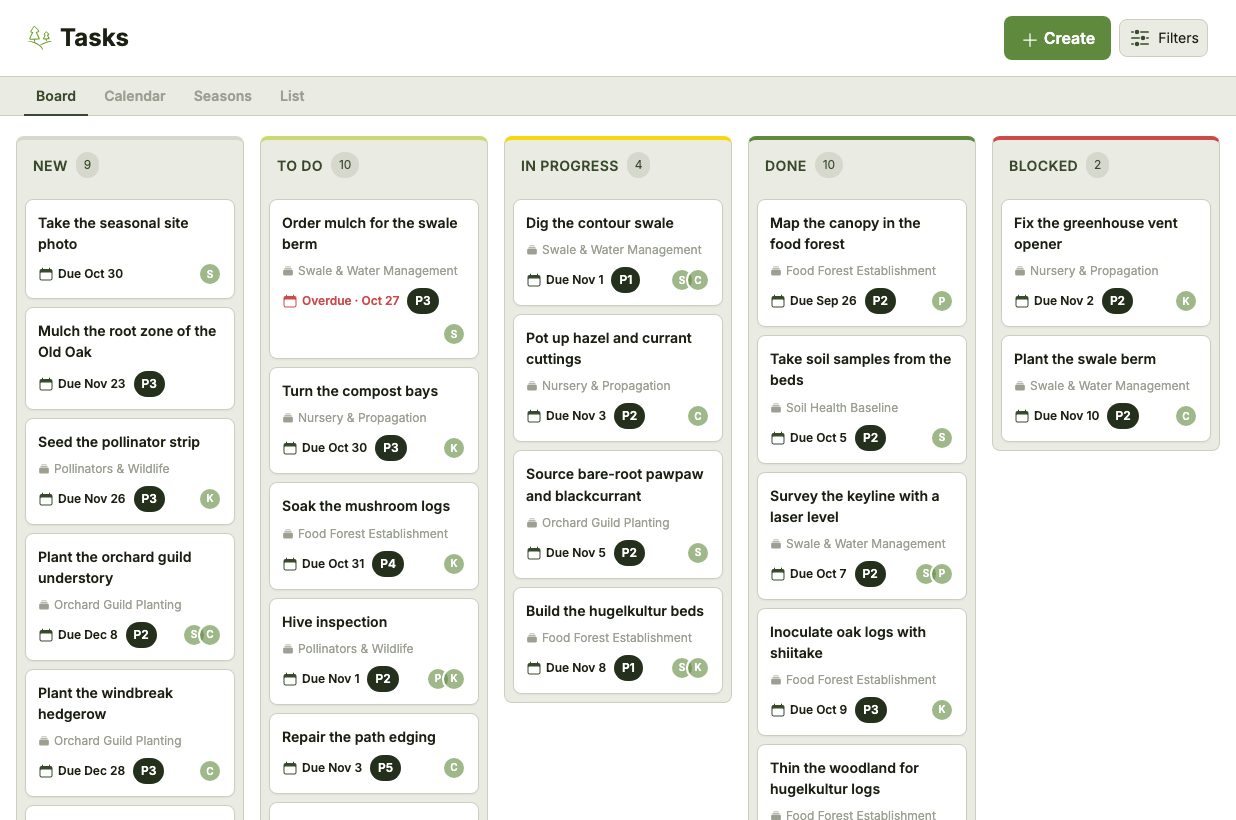
On smaller screens the columns stack vertically and can be collapsed, so the Board reads like the List grouped by status.
Calendar
The Calendar shows a month at a time, with each Task placed on its start date and its due date. Due dates are red (solid red once a Task is overdue), start dates are green, and finished Tasks are greyed out. Use the arrows to move between months, or Today to jump back to the current month.
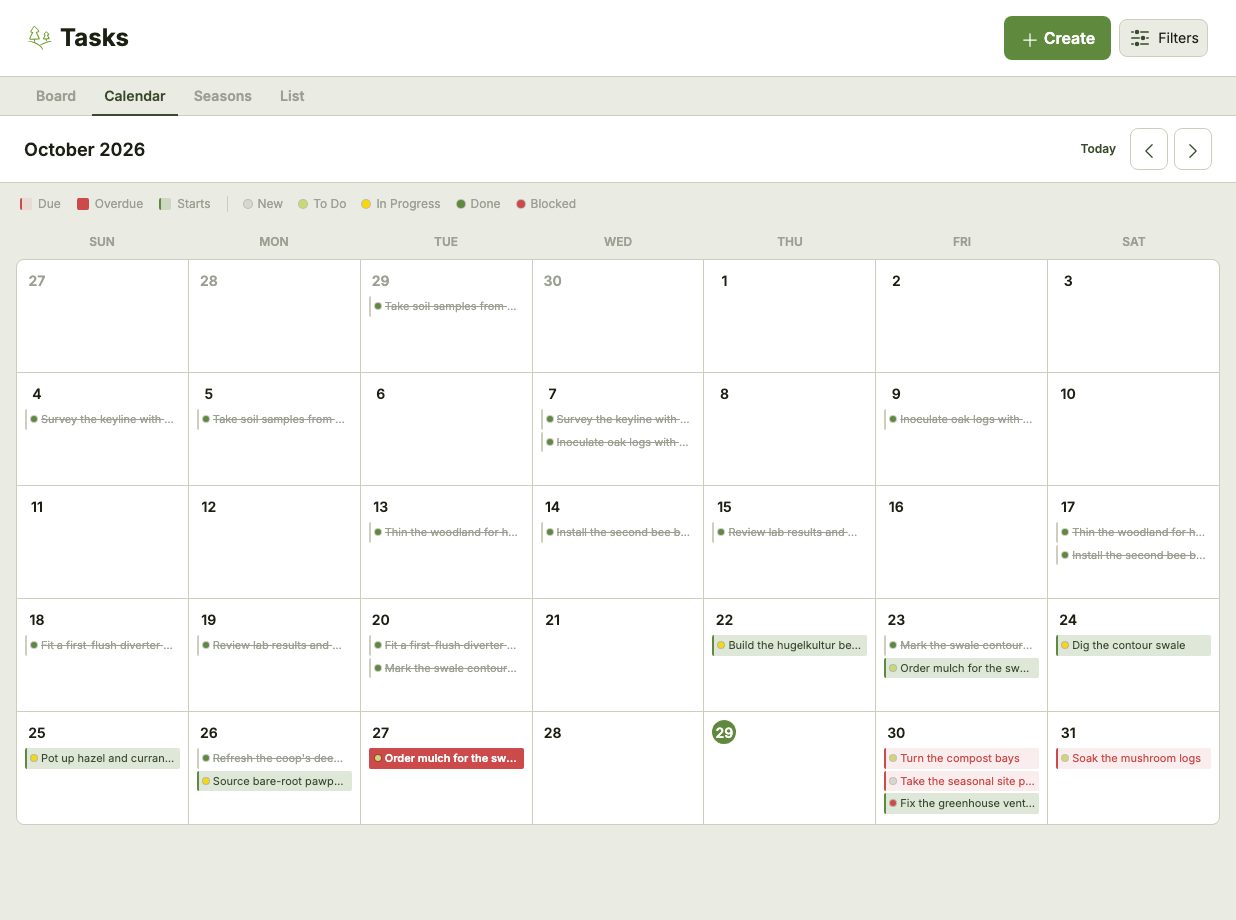
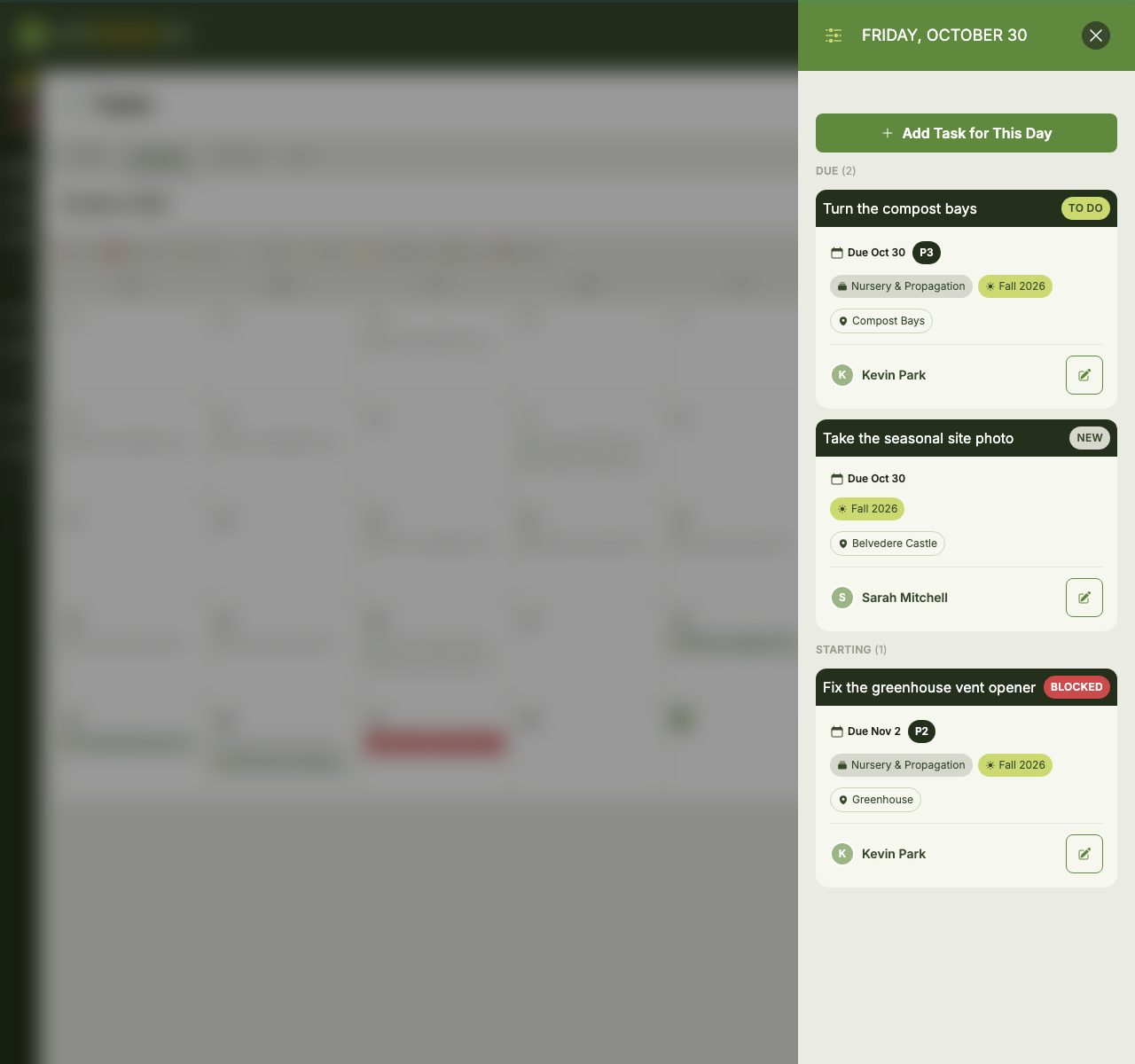
Click any day to see everything that starts or is due on it. From there, Add Task for This Day creates a new Task with that due date already filled in.
Seasons
The Seasons view groups every Task on the current Map by Season, with an Unscheduled group for Tasks that don't have one yet. It's the long-range view for planning the year ahead. See Organizing Tasks for how to create Seasons.
List
The List shows My Tasks (the Tasks you've created or been assigned) above On This Map (everything else on the current Map), with finished Tasks after the open ones. See Task Basics for more on how the two sections work.